Steps to Install and Activate Microsoft Office 2024 Professional Plus

Video demonstration of the installation and activation process

1. Download and run the Office Deployment Tool

  1. Office Deployment Tool download office_iconOffice_pp_2024_DE_64Bit_Windows.exe
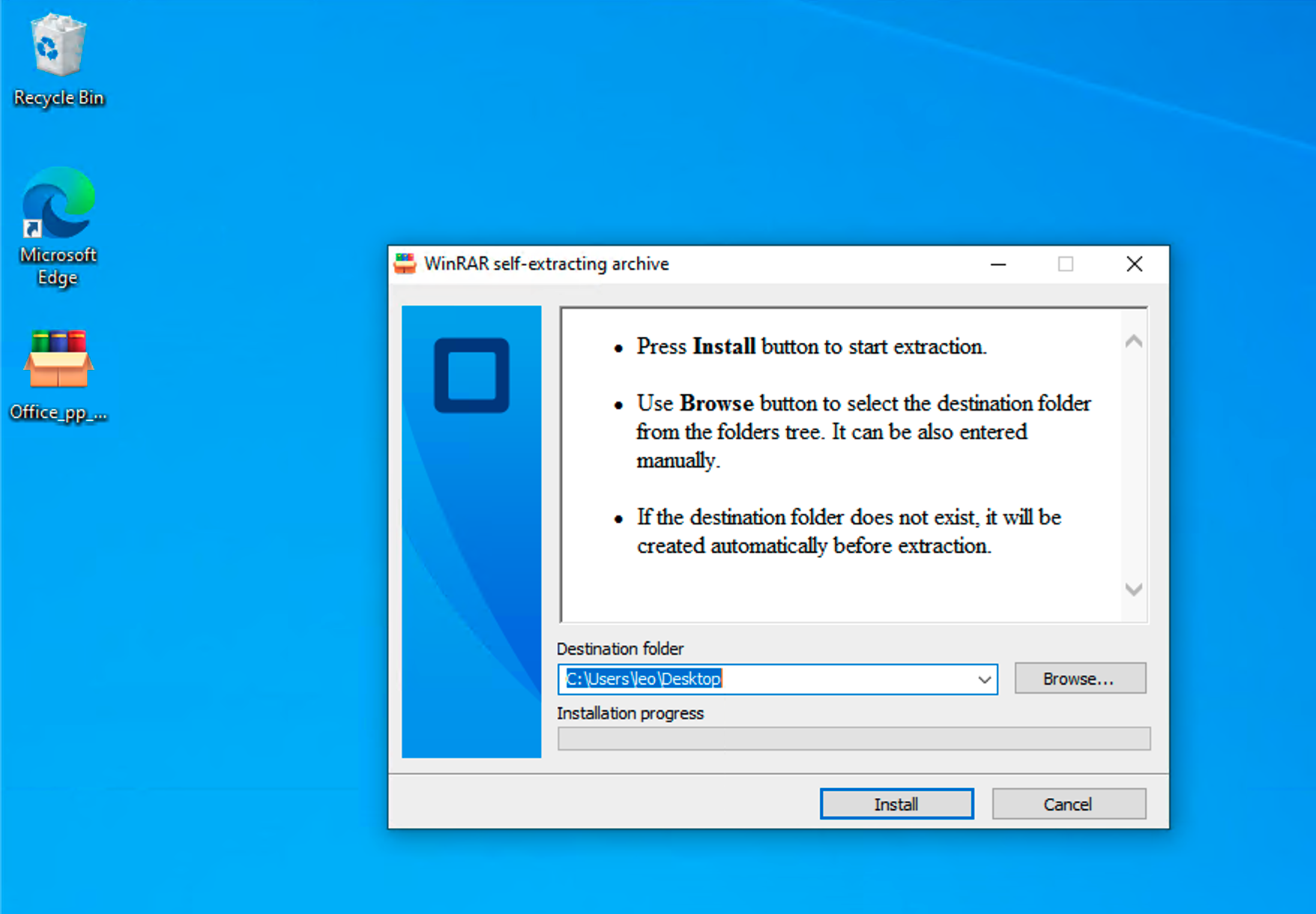
  2. Double-click the Office_pp_2024_DE_64Bit_Windows.exe file to extract it. By default, it will be extracted to the folder where the file is currently located. extract-tool
  3. The Microsoft Office Deployment Tool will prompt a dialog asking to download Office. Select Yes. download-office-1
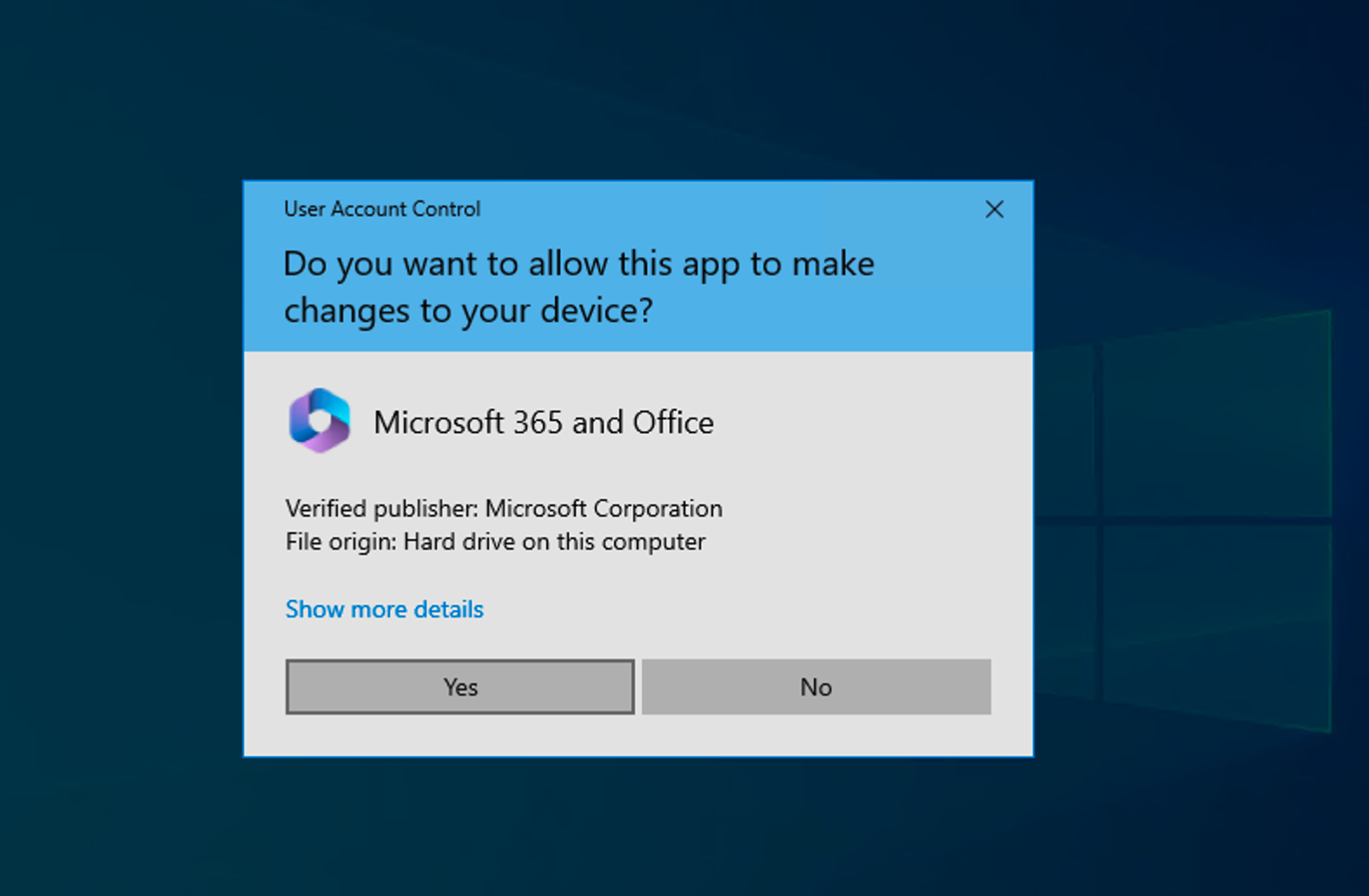
  4. The Deployment Tool will download and install Office from the Microsoft servers. This process will take some time, and the duration depends on your internet speed. download-office-2
  5. After the installation is complete, the program will display the following prompt. Close the prompt. At this point, you may delete the tool Office_pp_2024_DE_64Bit_Windows.exe as well as the extracted package folder and the start file. download-office-3

2. Activation

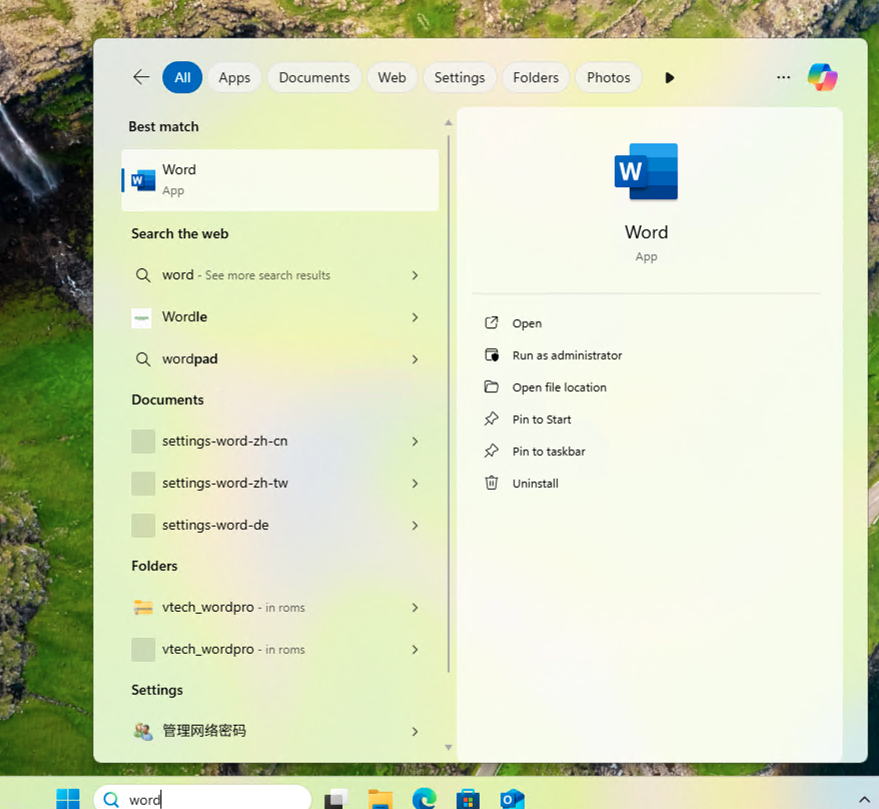
  1. Open any Office app (Word, Excel, etc.). Open Office App
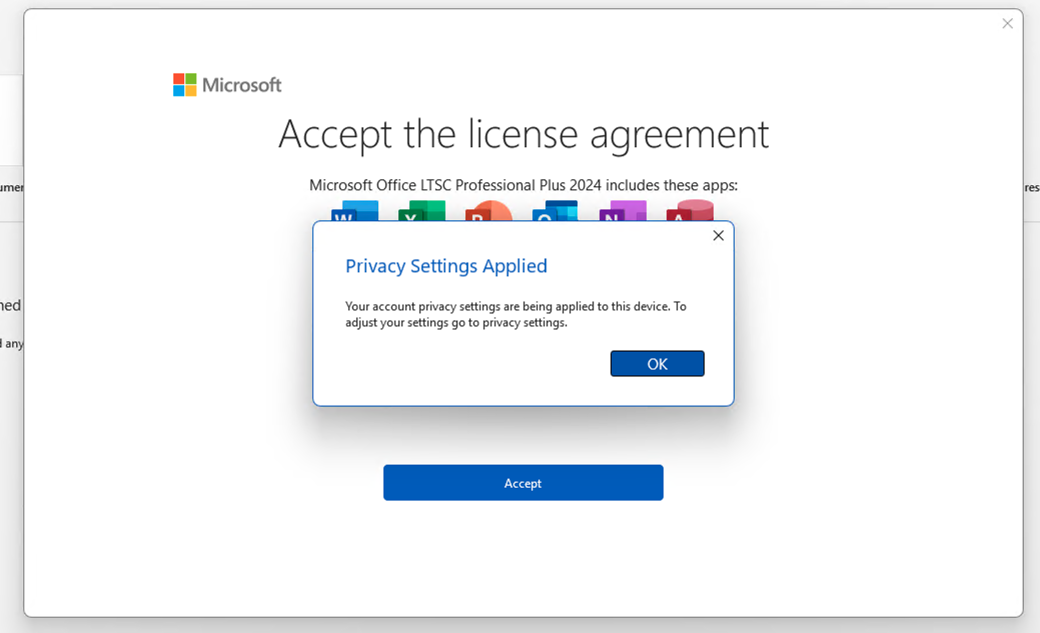
  2. Accept the license agreement Accept License
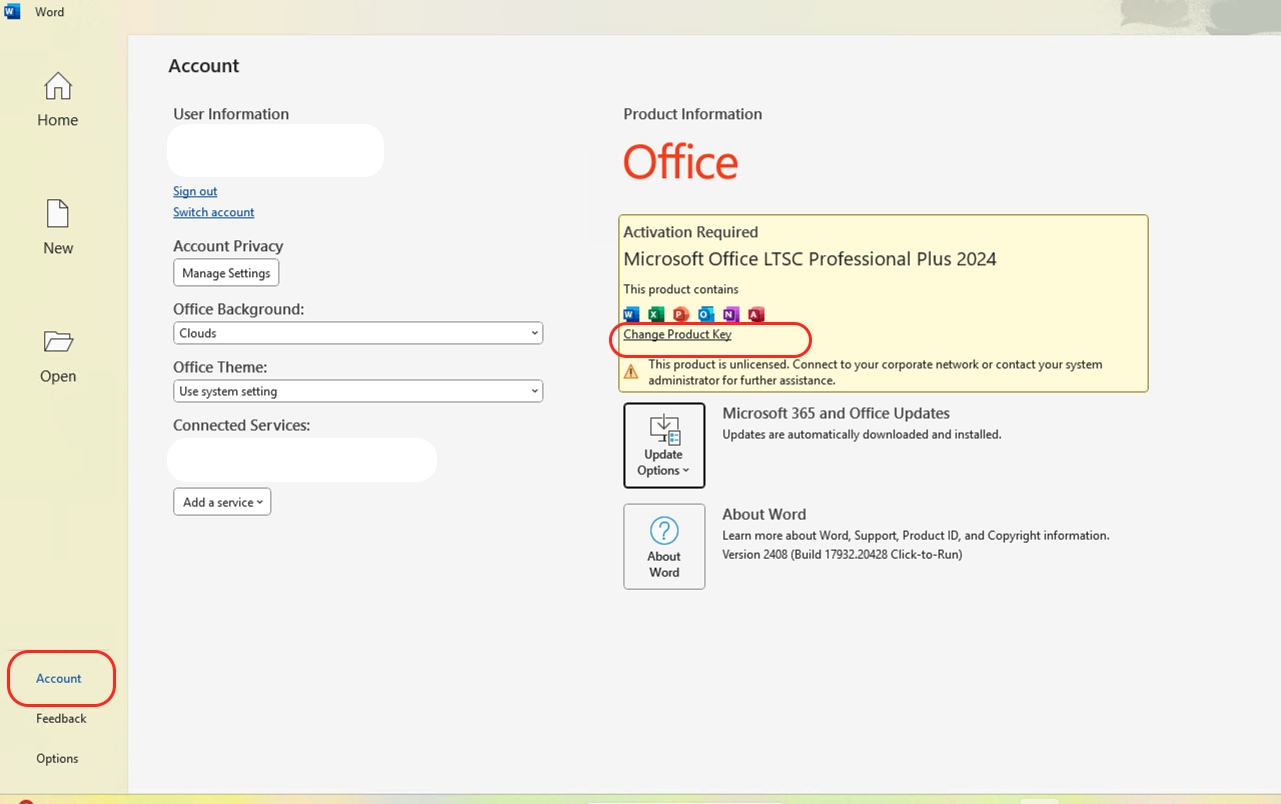
  3. Go to AccountChange Product Key. Change Key
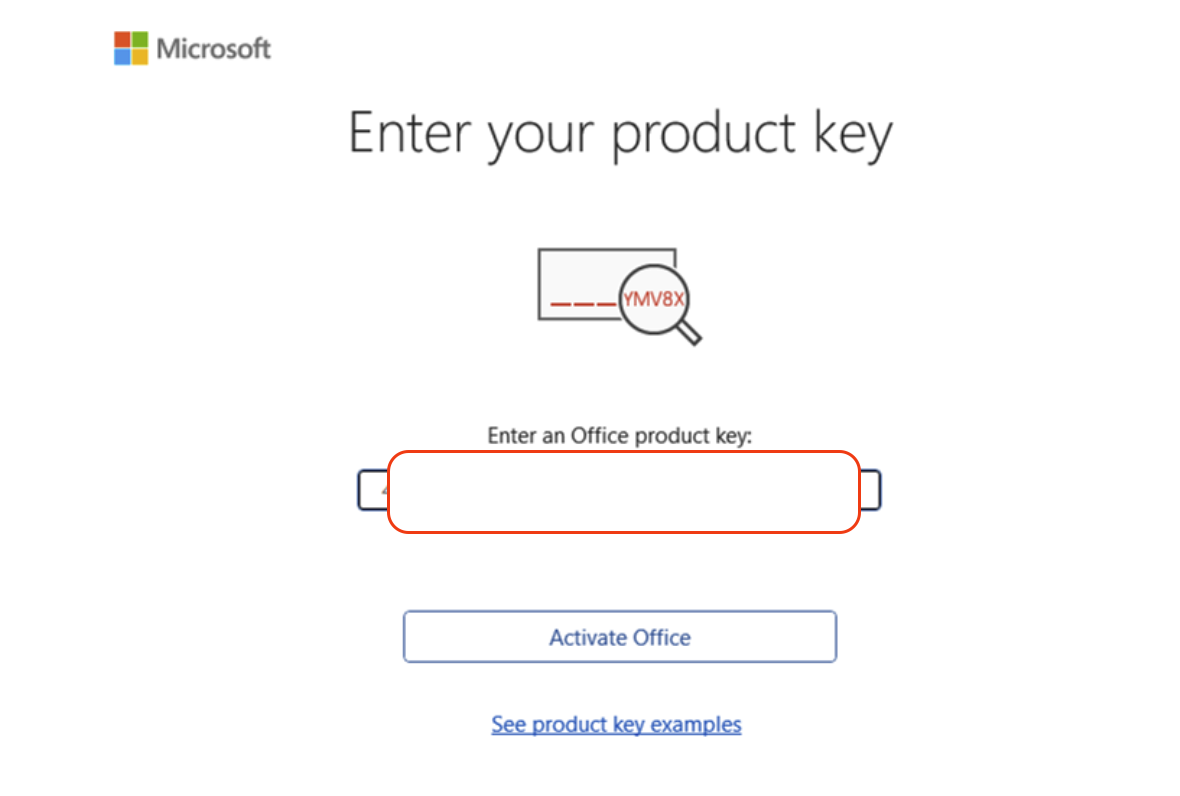
  4. Enter your product key and click “Activate Office”. Enter Key
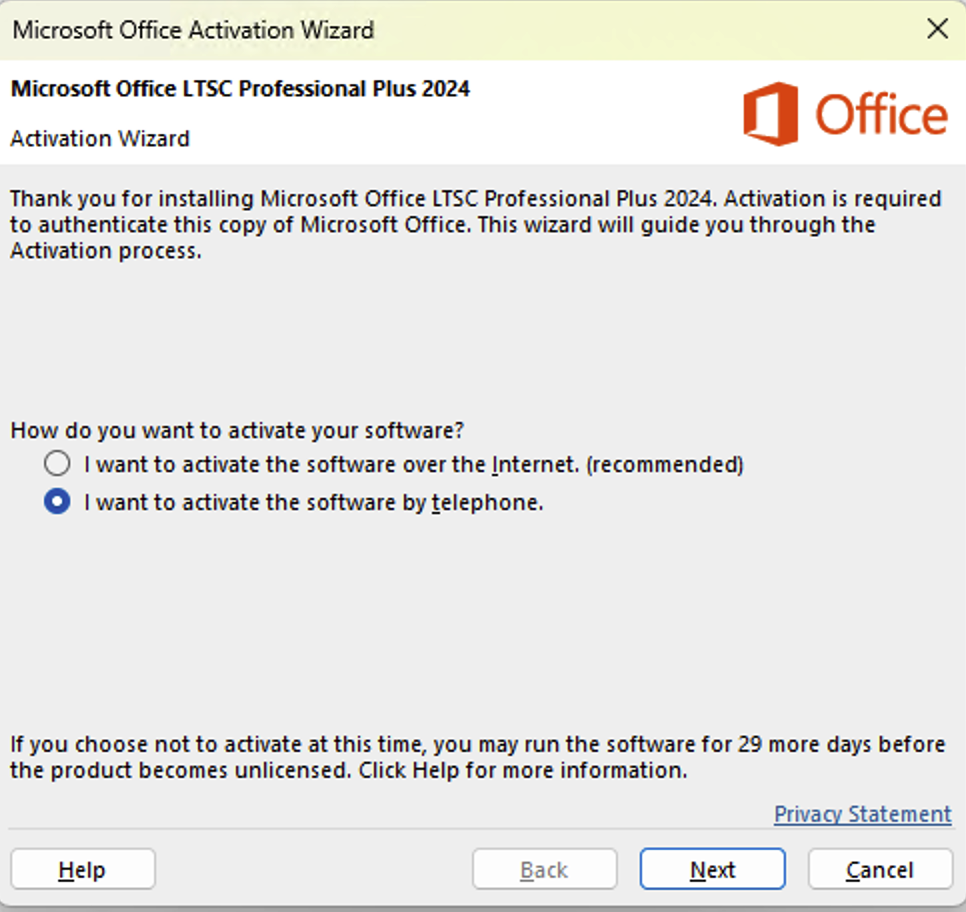
  5. Close the app and reopen it. When prompted, Choose Phone Activation. Phone Activation
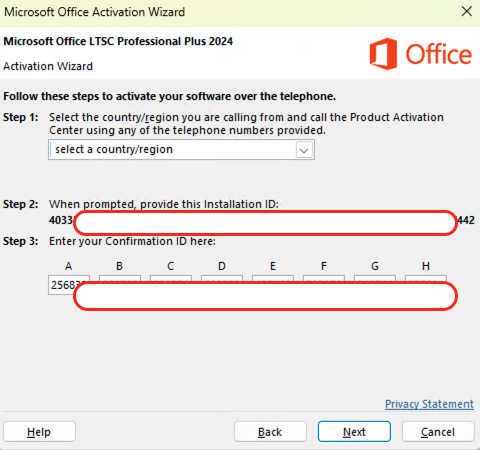
  6. Send us the Installation ID (Step 2 on screen). A screenshot is preferred for accuracy. Installation ID
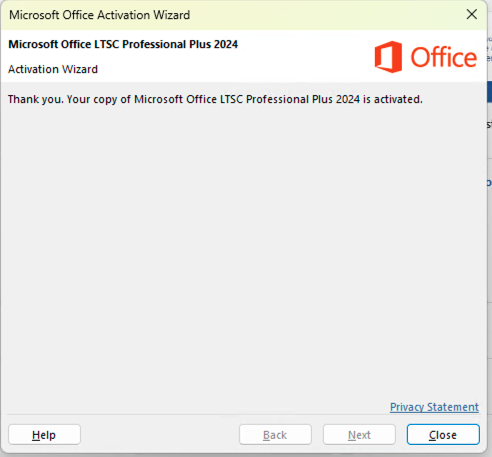
  7. Enter the Confirmation ID we provide to complete the activation of your product. Confirmation ID

To ensure that you can activate your product smoothly and without delay, please send us your Installation ID during our working hours. This way, you can receive your Confirmation ID within a few minutes to half an hour.

Our working hours are 8:00 AM to 8:00 PM Berlin time.

Please do not close the activation window while waiting for the Confirmation ID..

ℹ️ Additional Notes